> For the complete documentation index, see [llms.txt](https://docs.sollumz.org/llms.txt). Markdown versions of documentation pages are available by appending `.md` to page URLs; this page is available as [Markdown](https://docs.sollumz.org/2.5/tutorials/creating-static-meshes.md).
# Creating Static Meshes
Game meshes are stored in the [Drawable (.ydr)](https://github.com/Sollumz/wiki/blob/main/documentation/drawables.ydr) file format. Creating Drawables in Sollumz is very simple. This tutorial will walk you through step-by-step.
### Prerequisite Knowledge
* Basic Blender skills ([This is a great place to start](https://www.youtube.com/playlist?list=PLjEaoINr3zgFX8ZsChQVQsuDSjEqdWMAD))
* Know how to create YMAPs to place objects in CodeWalker ([Here's a basic tutorial](https://www.youtube.com/watch?v=W0YPabgu8oo))
* Know how to either stream assets in a FiveM server or load mods into the base-game
### What you will need
* A UV-mapped 3D mesh of your choice
* Textures for the mesh
You can also follow along with the tutorial by using the assets below:
{% file src="/files/q6QQ95rAYyjU4x4x8kc3" %}
### Converting to a Drawable
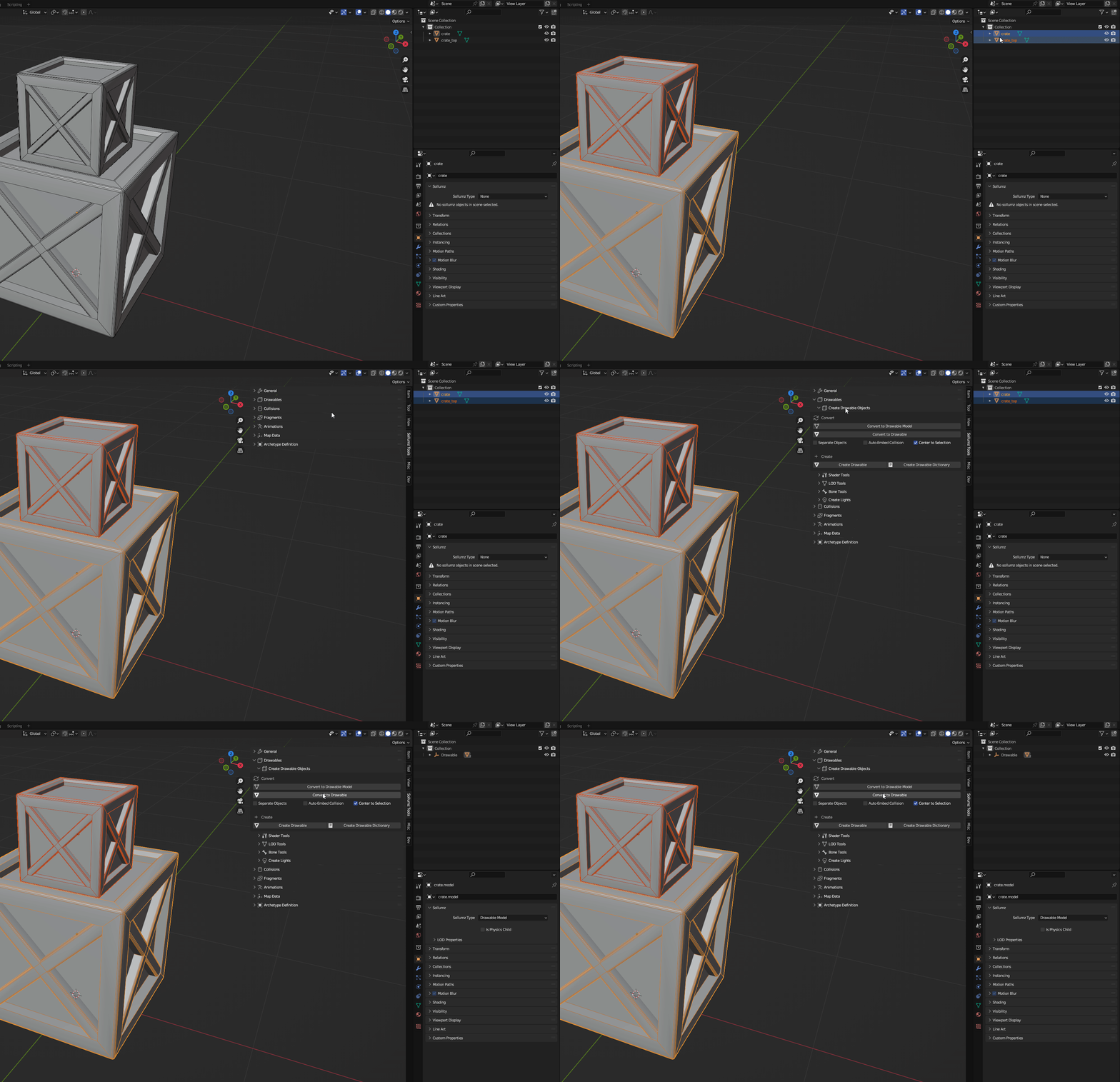
The first thing to do is convert your object(s) to a Drawable. Select all the objects and click `Convert to Drawable` in `Sollumz Tools > Drawable > Create Drawable Objects`.
Converting to Drawable
You'll notice that an empty object gets created called "Drawable" and the objects that were selected are now Drawable models.
Drawable hierarchy
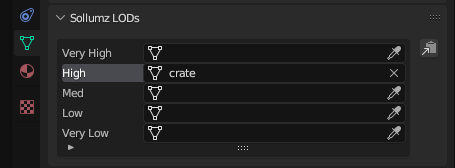
If you navigate to `Mesh Properties > Sollumz LODs` you'll also notice that the active mesh is automatically assigned to the "High" LOD level. This panel is where you can assign other meshes as LODs. More info on that [here](/2.5/documentation/drawables.ydr/level-of-detail-lods-editing.md). For the sake of this tutorial, we will only be setting the High LOD level.
Mesh Properties > Sollumz LODs
### Adding Materials
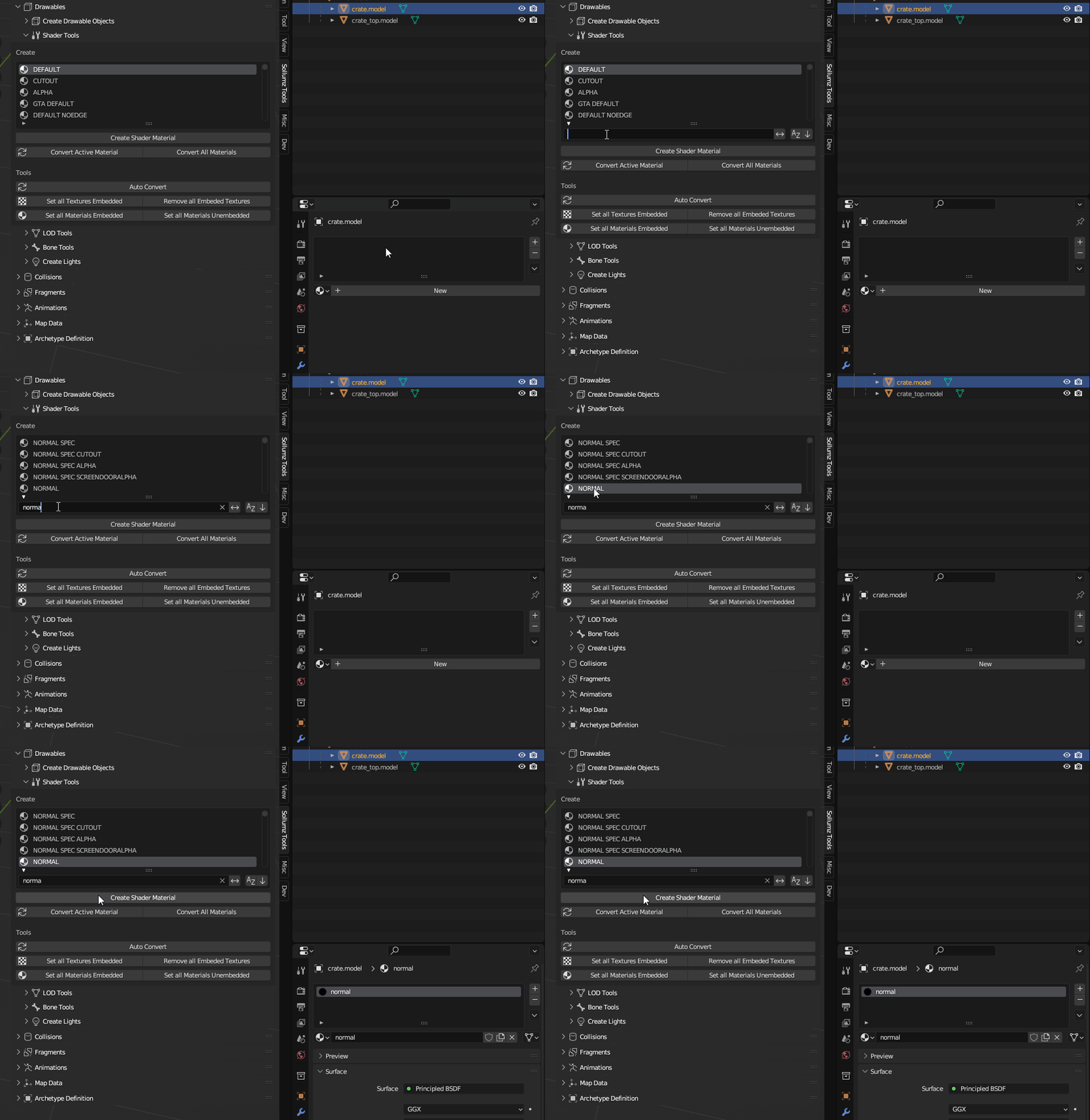
Next, we need to add materials to the Drawable Models. With one of the Drawable Models selected, open the `Sollumz Tools > Drawable > Shader Tools` panel. For this tutorial, I will use the "NORMAL" shader which allows us to specify a base color and a normal map. Search for the "NORMAL" shader and click `Create Shader Material`.
Creating Sollumz material
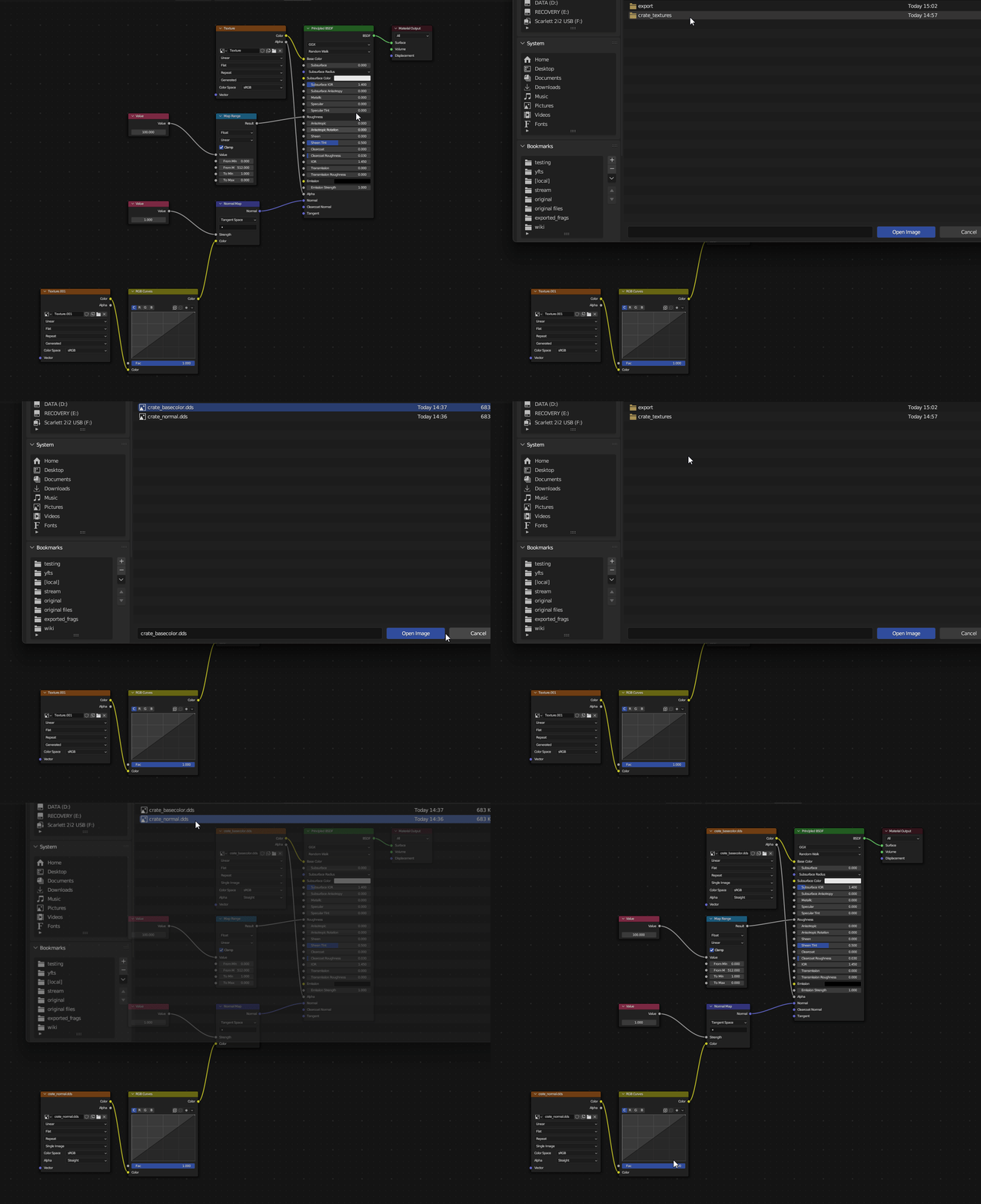
With the newly added material selected, head to the shading tab and assign your textures.
Assigning textures
Repeat the process for any other Drawable Models. In my case, I am just going to use the same material for the "crate\_top" Drawable Model.
### Embedding Textures
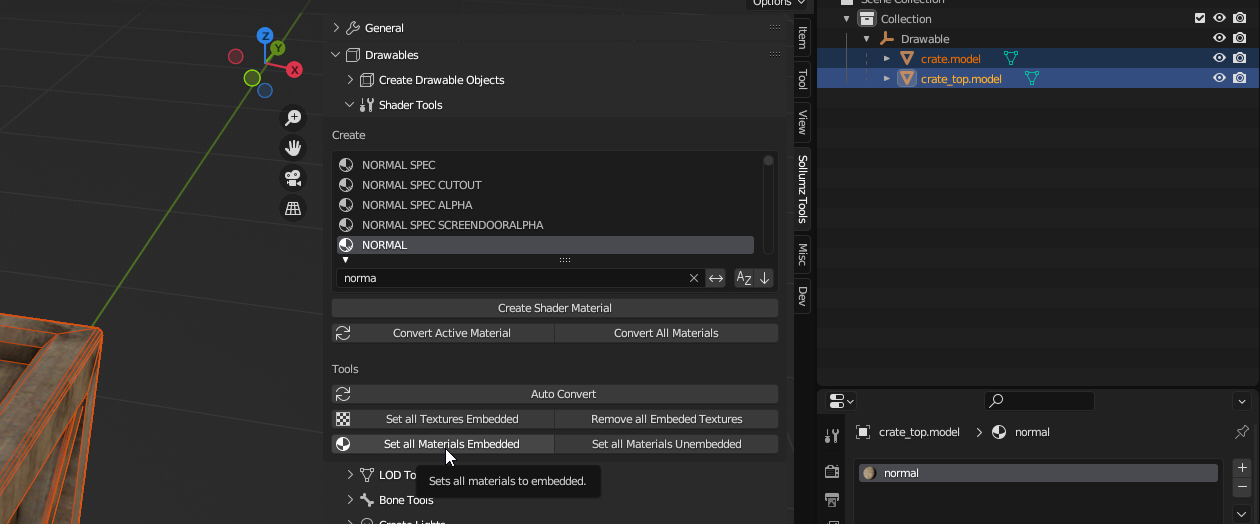
Lastly, we need to set the textures as embedded. This will embed the textures into the YDR file, so we don't have to create a texture dictionary file (.ytd). With both objects selected, navigate to `Sollumz Tools > Drawable > Shader Tools` and click `Set all Materials Embedded.`
Sollumz Tools > Drawable > Shader Tools > Set All Materials Embedded
### Exporting
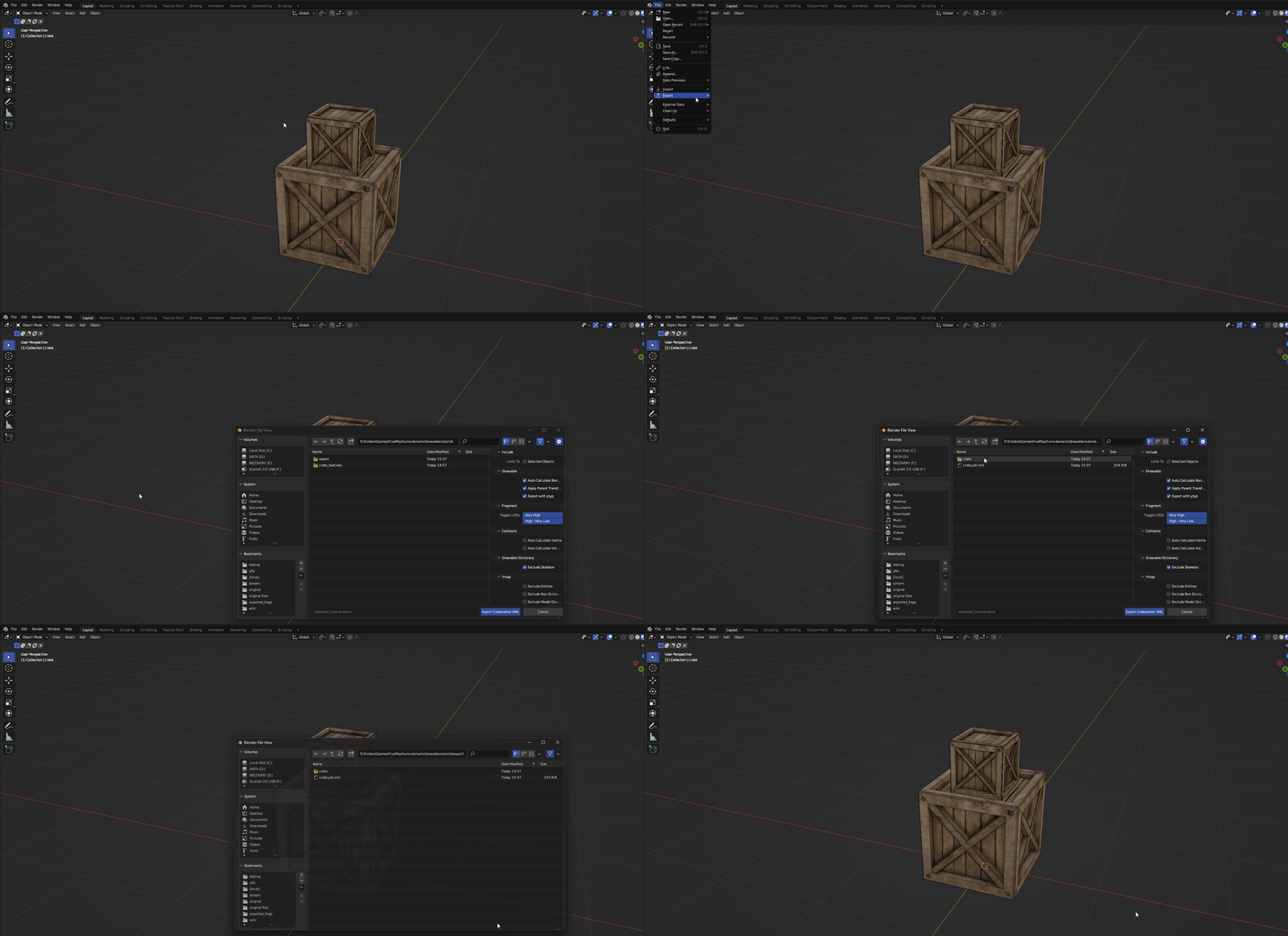
Before exporting I'm going to rename my Drawable to something more descriptive like "crate". Once you're happy with everything, export the Drawable by clicking File > Export > Codewalker XML. I am going to also enable `Export with ytyp`. This will automatically generate a YTYP with the Drawable we created already defined.
File > Export > Codewalker XML
{% hint style="info" %}
You can also import/export via the Sollumz pie menu by pressing V and choosing "Export CodeWalker XML"
{% endhint %}
Your Drawable is now ready to be loaded into the game!
### Getting Files Ready to Stream
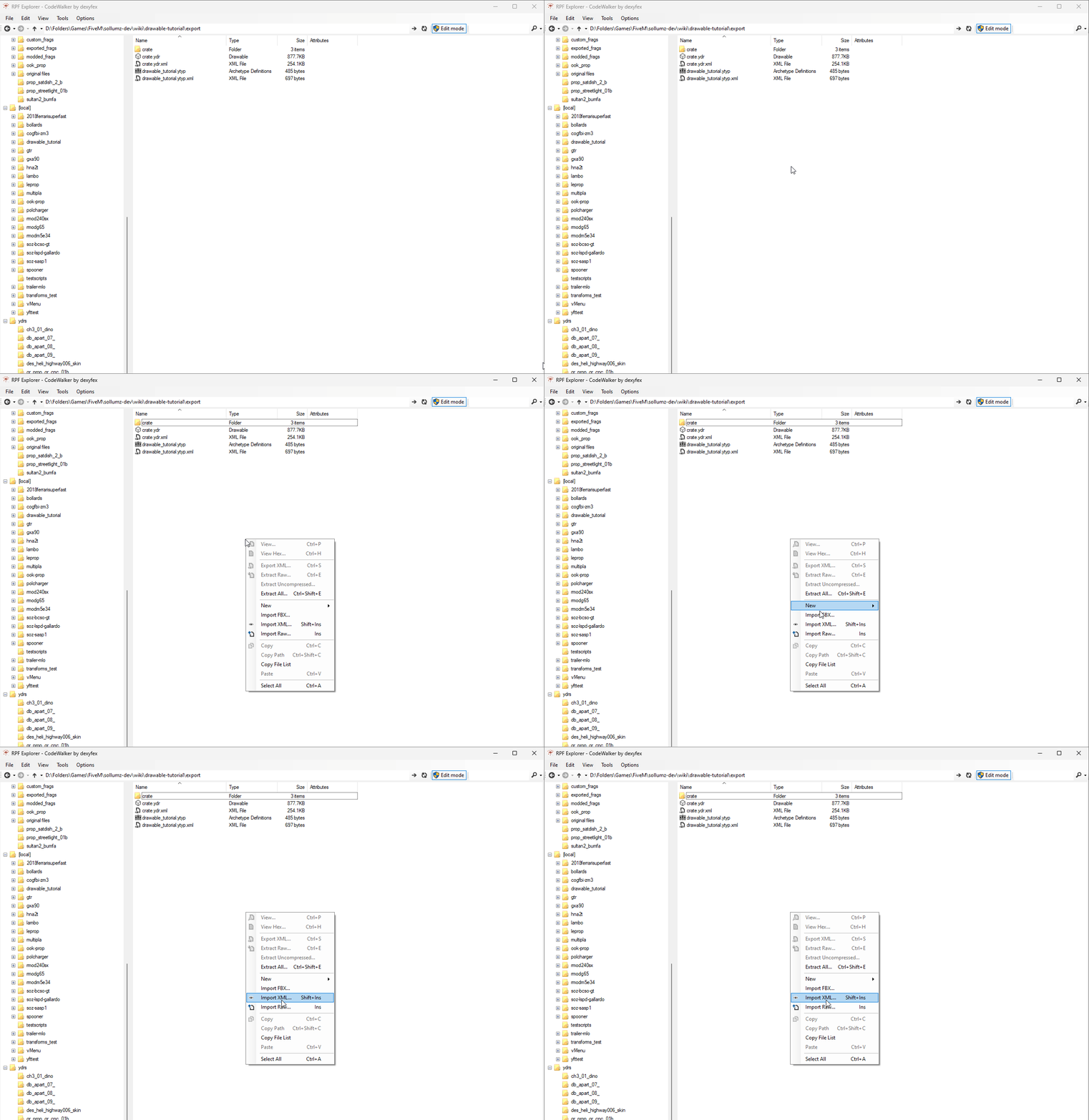
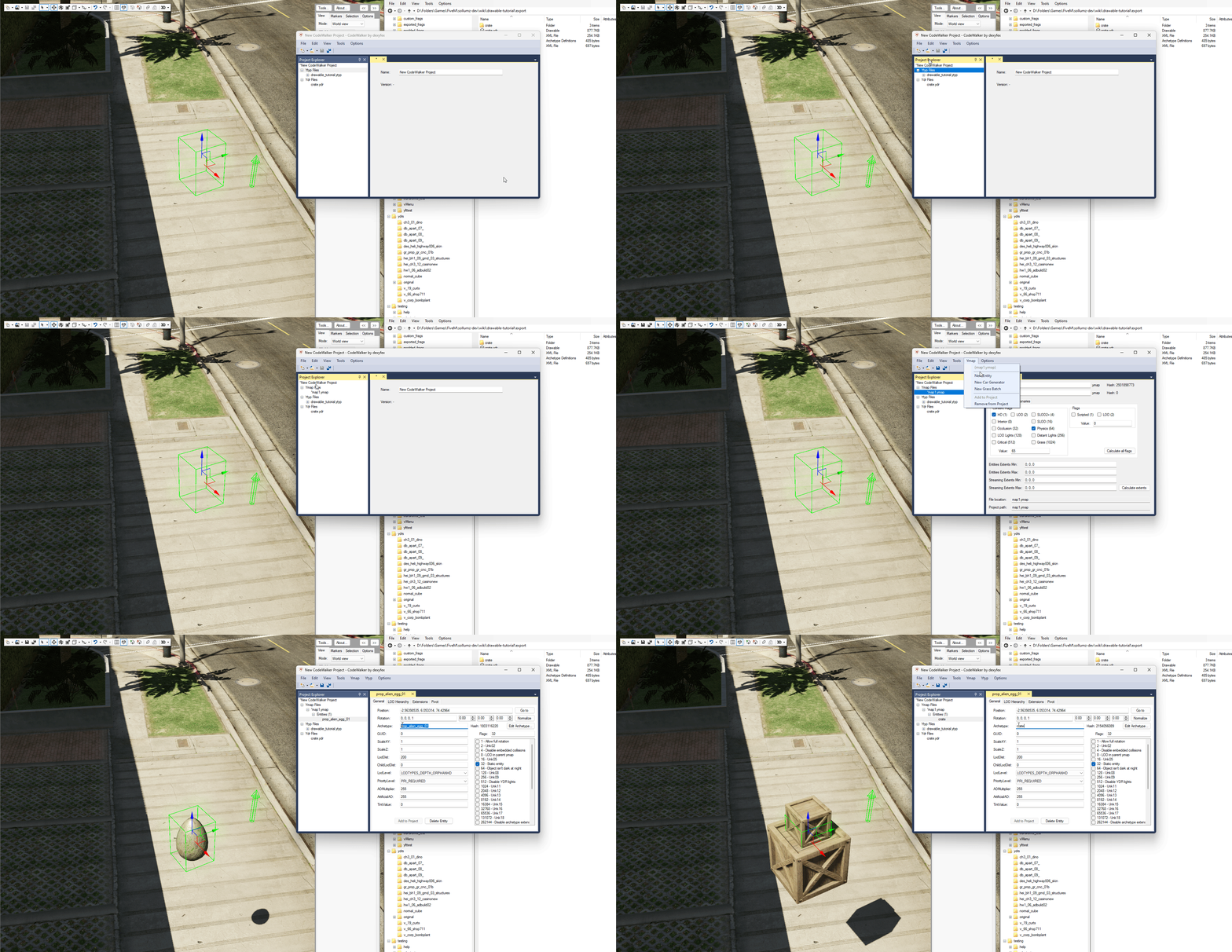
Convert the ydr.xml and ytyp.xml using CodeWalker.
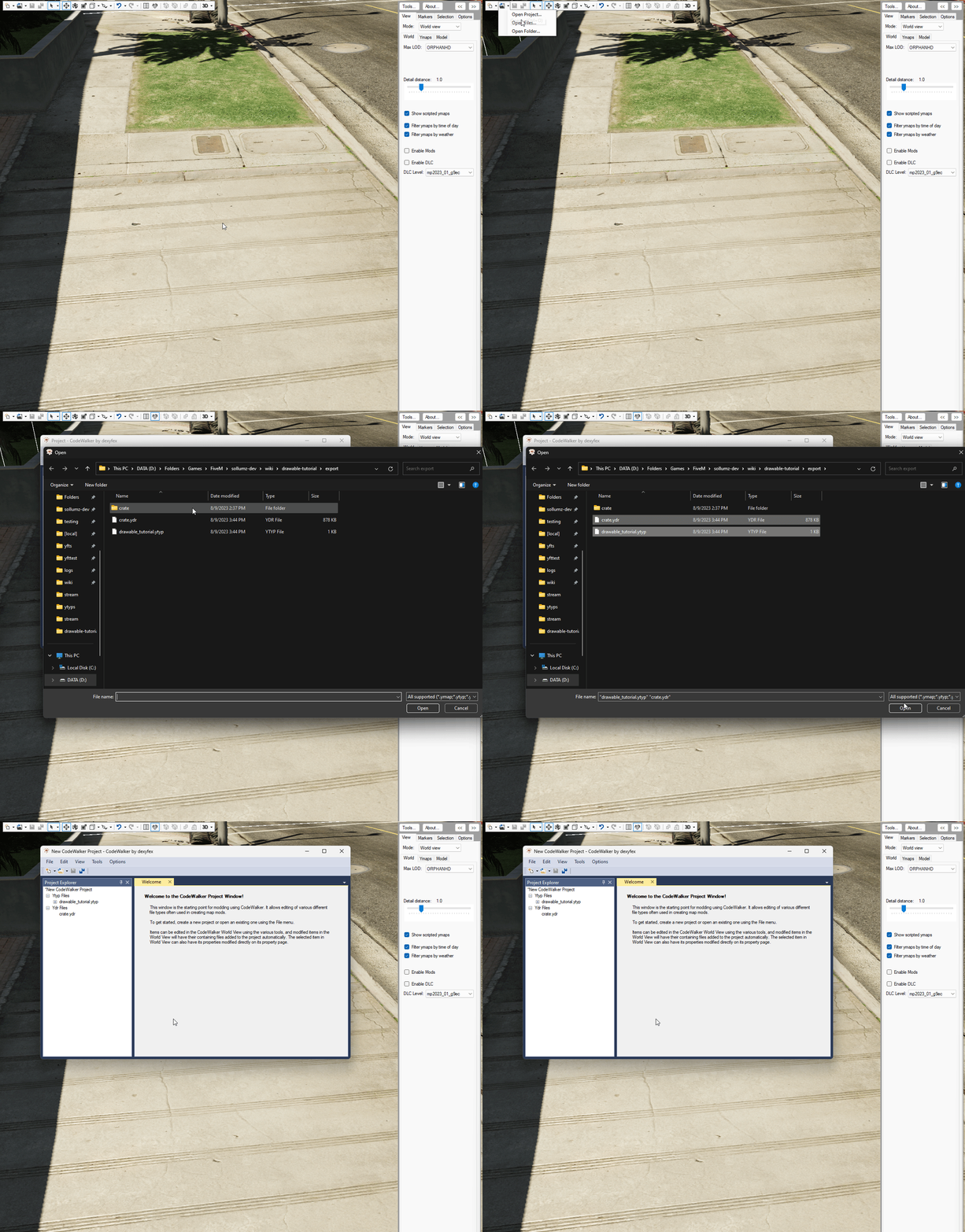
Open the converted files in a CodeWalker project.
Add a YMAP to the project and add the newly created Drawable as an entity.
Position the entity to your liking, then export the YMAP.
{% hint style="warning" %}
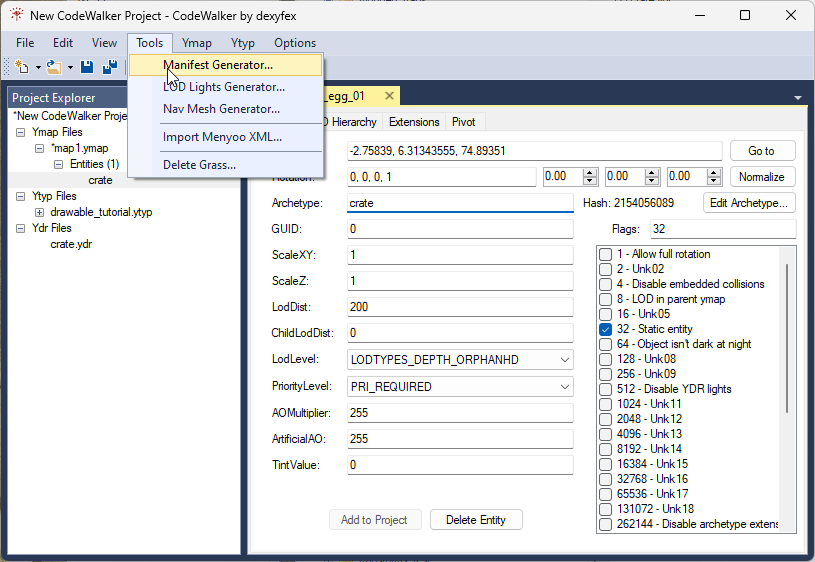
Don't forget to generate \_manifest.ymf for your project!
{% endhint %}
Now, load your YDR, YTYP, YMAP, and \_manifest.ymf into either an RPF or the stream folder of your FiveM resource.
### Test In-Game
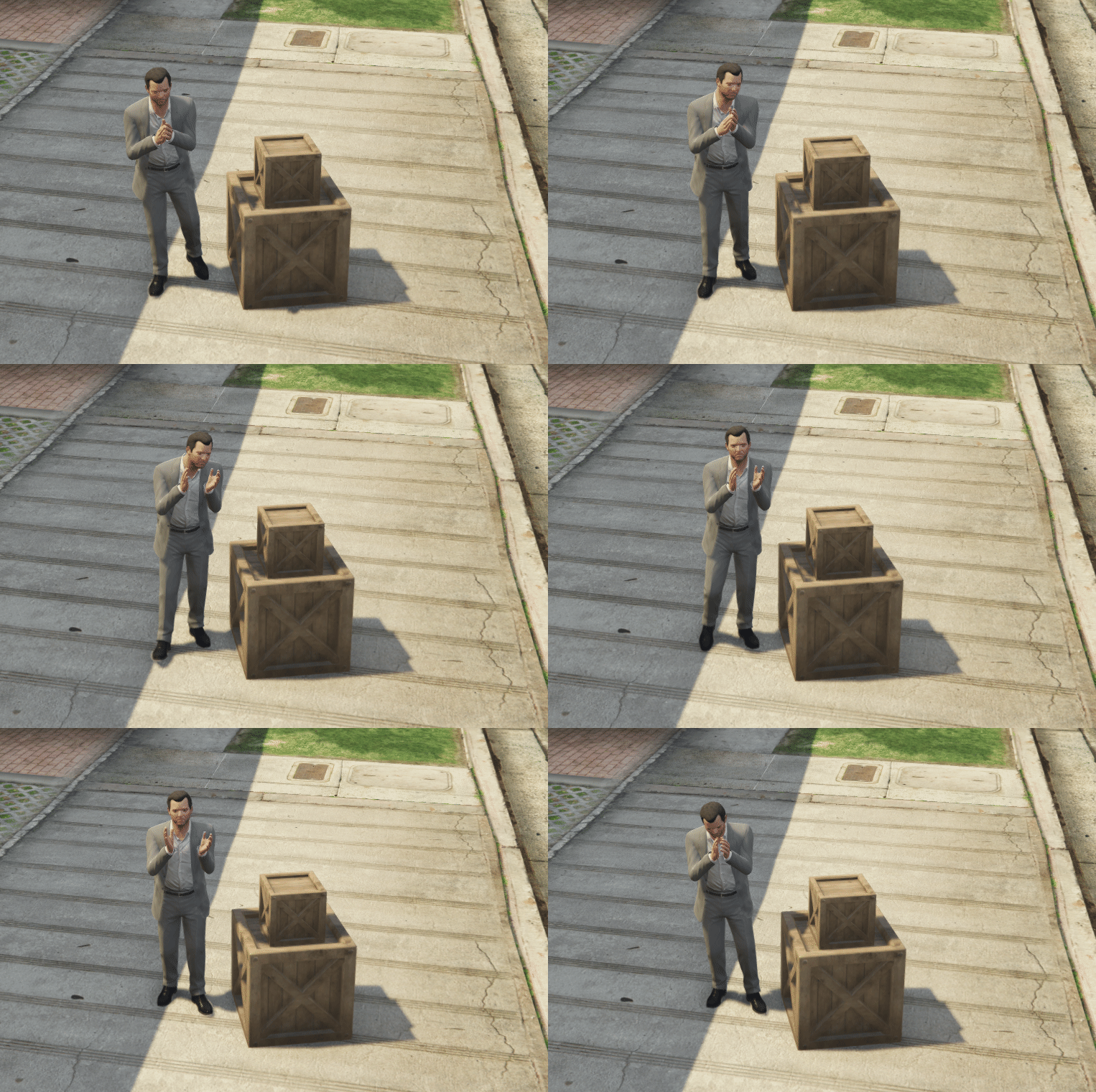
That's it! Load into the game and check out your creation!
{% hint style="info" %}
Note that your character will not collide with the Drawable as we have not created collisions for it. See [Creating Static Collisions](/2.5/tutorials/creating-static-collisions.md) to learn how to create collisions.
{% endhint %}
---
# Agent Instructions
This documentation is published with GitBook. GitBook is the documentation platform designed so that both humans and AI agents can read, navigate, and reason over technical content effectively. Learn more at gitbook.com.
## Querying This Documentation
If you need additional information that is not directly available in this page, you can query the documentation by asking a question.
Perform an HTTP GET request on the following URL with the `ask` and `goal` query parameters:
```
GET https://docs.sollumz.org/2.5/tutorials/creating-static-meshes.md?ask=&goal=
```
`ask` is the immediate question: it should be specific, self-contained, and written in natural language.
`goal` is what the user is ultimately trying to achieve, the reason they need the answer. Sharing it helps GitBook give you a better, more relevant answer. A goal is most helpful when it describes the outcome the user wants rather than restating the question. For example, with `ask=how do I create an API token`, a goal like `automate deployments from our CI pipeline` lets GitBook tailor the answer to that use case.
The response will contain a direct answer to the question and relevant excerpts and sources from the documentation.
Use this mechanism when the answer is not explicitly present in the current page, you need clarification or additional context, or you want to retrieve related documentation sections.